The Advisor tool is a feature that allows you to receive a centralized overview of your website's health. The tool provides you with an eagle-eye view of important elements in your website that affect your website's visibility on the web, its exposure on search engines, and its legal and security status and compliance.
To use the Adviser tool, follow these steps:
Go to your website Dashboard.
On the site's side menu, click on Advisor
Inside the Main tab, check the status of the relevant settings for the audit
Click the Filter Button at the top of the Advisor tool to view each subject overview individually
This is the default filter, this filter shows you an immediate overview of all the different elements of the tool, allowing you to address issues immidiatly
You can click each indicator to view an issue and correct it.
These tags are the title and description of your Homepage, which is what people will see on search engine results when they search for your website. You can also add Meta Tags for every page on your website. Read about editing Website Meta Tags to improve SEO.
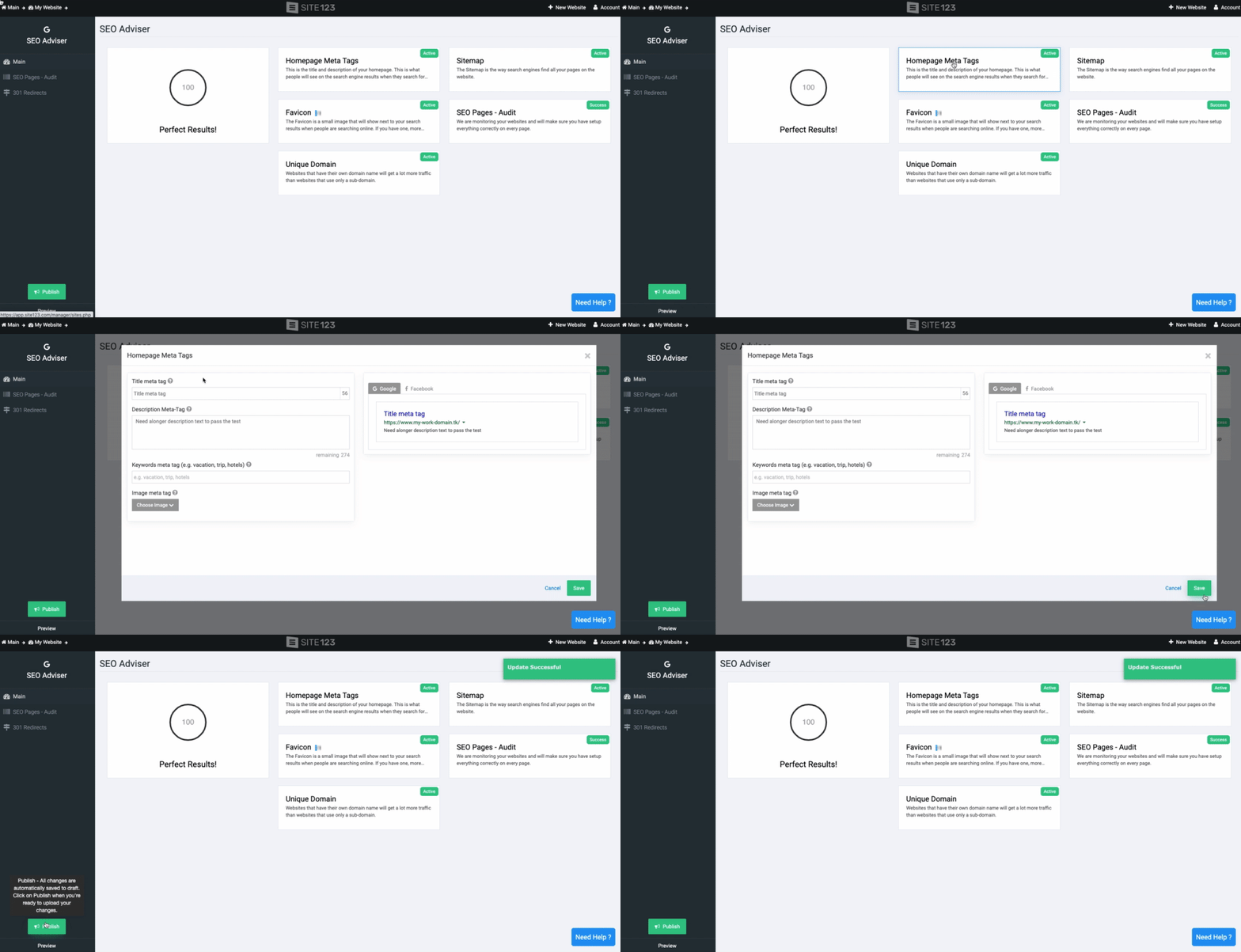
The Sitemap is the way search engines find all your pages on the website. Connect Your Website to Google Search Console and submit your sitemap to allow quick indexing of your website. To find your Sitemap:
In the Advisor Screen, click on the Site Map indicator and copy the Site Map link
OR
In the Website Editor, click Pages and find the Homepage in your pages list
Click the gear icon next to it, and select SEO
Copy the Site Map link from the top of the Homepage SEO screen

A favicon is a small image that will appear next to search results when people search for your website online. It will also appear in the browser window tab, next to the website's URL, which will give a unique identity to your website and brand.
Read about Website Name, Logo and Favicon.
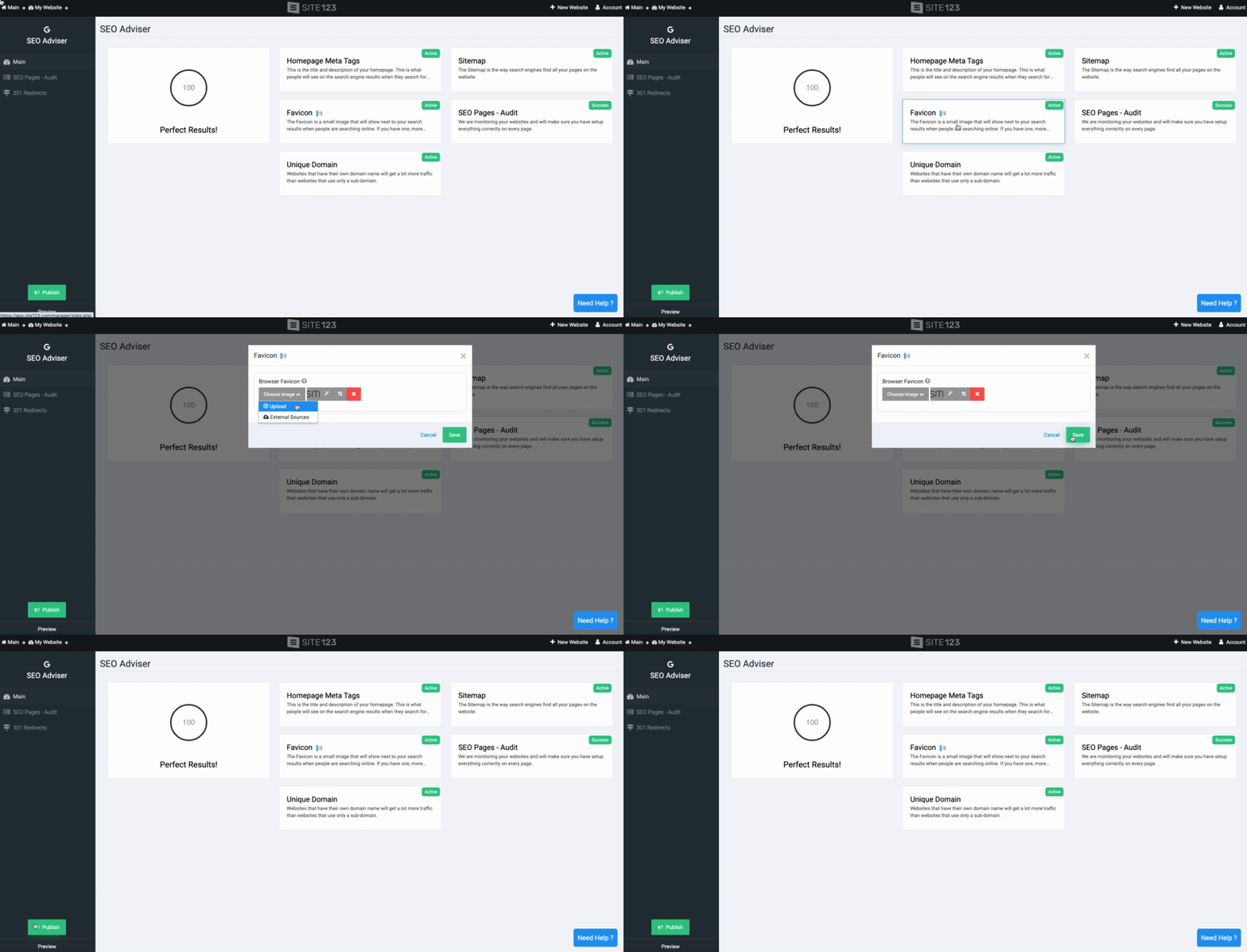
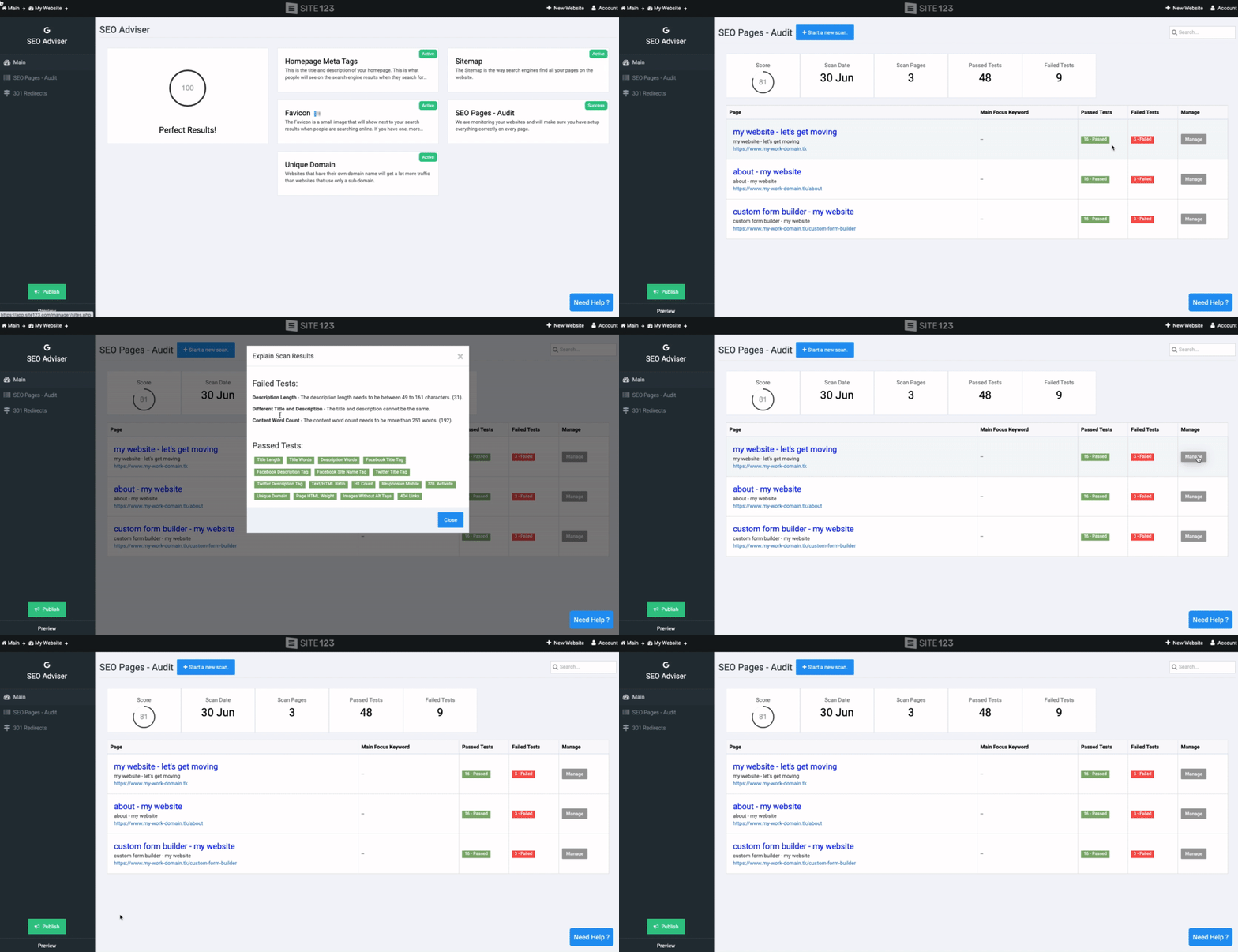
Inside the SEO Pages - Audit tab, run audits and see if your SEO is optimal for search results. The tool will scan your website pages and show the website's overall score, scan date, the number of pages scanned, and the total of passed and failed tests.
For each page on your website, the tool will show which tests it passed, the Main Focus Keywords, and what you need to edit to pass the remaining tests.
Click the Manage button to edit the SEO of the page directly from the tool.
Websites that have a custom domain name will get a lot more traffic than websites that use a subdomain.
Adding a unique domain is crucial for your website exposure and promotion, making it easy to locate your website both to your potential clients and search engines. Read more on how to Search and Order a Domain.
Adding multiple languages to your website helps you connect with visitors from around the world and significantly improves your international SEO.
To add or manage your website languages, click the indicator and then click Manage Languages.
Take advantage of our SEO promotion packages and service, allowing you the peace of mind knowing that your website SEO needs are handled by a professional team dedicated to elevating your website to the next level. Click the Indicator to learn more about our SEO Promotion services and how the process works.
Automatic internal link building is a feature that creates links between related pages or posts on your website. These links help search engines understand your site's structure and make it easier for visitors to explore more of your content without leaving the page they are on. Click the indicator and then click Navigate to Blog Settings or Navigate to Article Settings to edit this option in each page, respectively.
Keywords Manager helps you track and optimize the keywords that matter most for your business. It shows which keywords you are currently ranking for and suggests new opportunities. Click the Indicator and then click Go to Keyword Manager.
Content Recommended is the AI-powered content assistant that helps you create high-quality blog posts and articles. It analyzes your website and industry to suggest relevant topics and generate engaging content. Click the Indicator and then click Generate Content Now.
Use this overview to view the status of your marketing campaigns.
Marketing campaigns are important for your ability to connect with your users, keep them informed about your business progress, and inform them of new developments.
The Legal Overview provides you with a crucial overview of the different legal and security requirements of your website
This indicator will inform you if you already added the relevant statement to your website. Clicking each of the options will provide you with a pop-up window explaining the statement's importance and allow you to click the Open Editor Button to add the relevant statement. Read more about adding Privacy Policy, Accessibility Statement, and Terms of Use
This indicator will show you if an Accessibility Plugin was added to your website. If not, by clicking the indicator and clicking the Add Plugin Button, the plugin will automatically be added to your website.
This indicator will show you if you added a Cookie consent statement. If not, by clicking the indicator and clicking the Open Editor Button, the plugin will automatically be added to your website.
This indicator will show you the status of your website's SSL certificates.
This indicator will show you the compliance of your website with GDPR The indicator will give you an overview of the regulation and a tip box indicating what needs to be done for your website.
The professional overview will provide you with information about important general elements of your website.
These indicators will present to you our Build My Site and SEO promotion services we offer. This will allow you to learn more about our Professional Design and SEO Promotion packages and how the process works. You will also be able to click Start now and start your online journey with a well-designed and promoted.
Keywords Manager helps you track and optimize the keywords that matter most for your business. It shows which keywords you are currently ranking for and suggests new opportunities. Click the Indicator and then click Go to Keyword Manager.
Two-Factor Authentication (2FA) adds an extra security step when logging into your account. Even if someone gets your password, they won't be able to access your account without the second verification method. This indicator will allow you to see if you activated the 2FA option on your account. Click the indicator and click Manage Security Settings.
Content Recommended is the AI-powered content assistant that helps you create high-quality blog posts and articles. It analyzes your website and industry to suggest relevant topics and generate engaging content. Click the Indicator and then click Generate Content Now.
The Keyword Manager allows you to track and manage target keywords for your website to optimize content and improve search engine visibility
Under this tab, you will see all added keywords
The tool will also allow you to manually add targeted keywords. Click the Add Keyword button at the top of the Keyboard Manager screen, and add Keywords the best describe your website, business, or service. Keywords should be added seperated by a comma, for example: Website, Website building, Website design.
The added Keywords will be visible in the main table:
Use filters at the top of the Keywords Manager screen to sort your displayed information
Sort By - Use this option to sort the list by Alphabetical Order (A-Z or Z-A), Volume, and competition ( Low to High or High to Low)
Appearance Count - Use this option to sort the list based on the number of appearances your words have in your pages
Country - Based on your AI settings, the list will be targeted to a specific country market. Click Change to edit the settings
Note that this will also affect the Target country of your full website.
Inside the 301 Redirects tab, redirect visitors and search engines to a different URL than the one they originally typed into their browser or selected from search engine results. Read about the 301 Redirects Tool.
Note:
Click Publish to update your site with any changes made in the tool.
Websites updated with the Gold Package or higher will be able to scan all pages, while lower packages will be able to scan only 3 pages.
After each audit, an email summary will be sent to the website owner.