

Editing your website's meta tags is a critical step for improving SEO and helping search engines understand your content. Well-crafted meta tags also serve as marketing copy that can increase your click-through rate by making your site stand out in search results.
In the Website Editor, click Pages.
Locate the specific page you want to update and click the gear icon next to it.
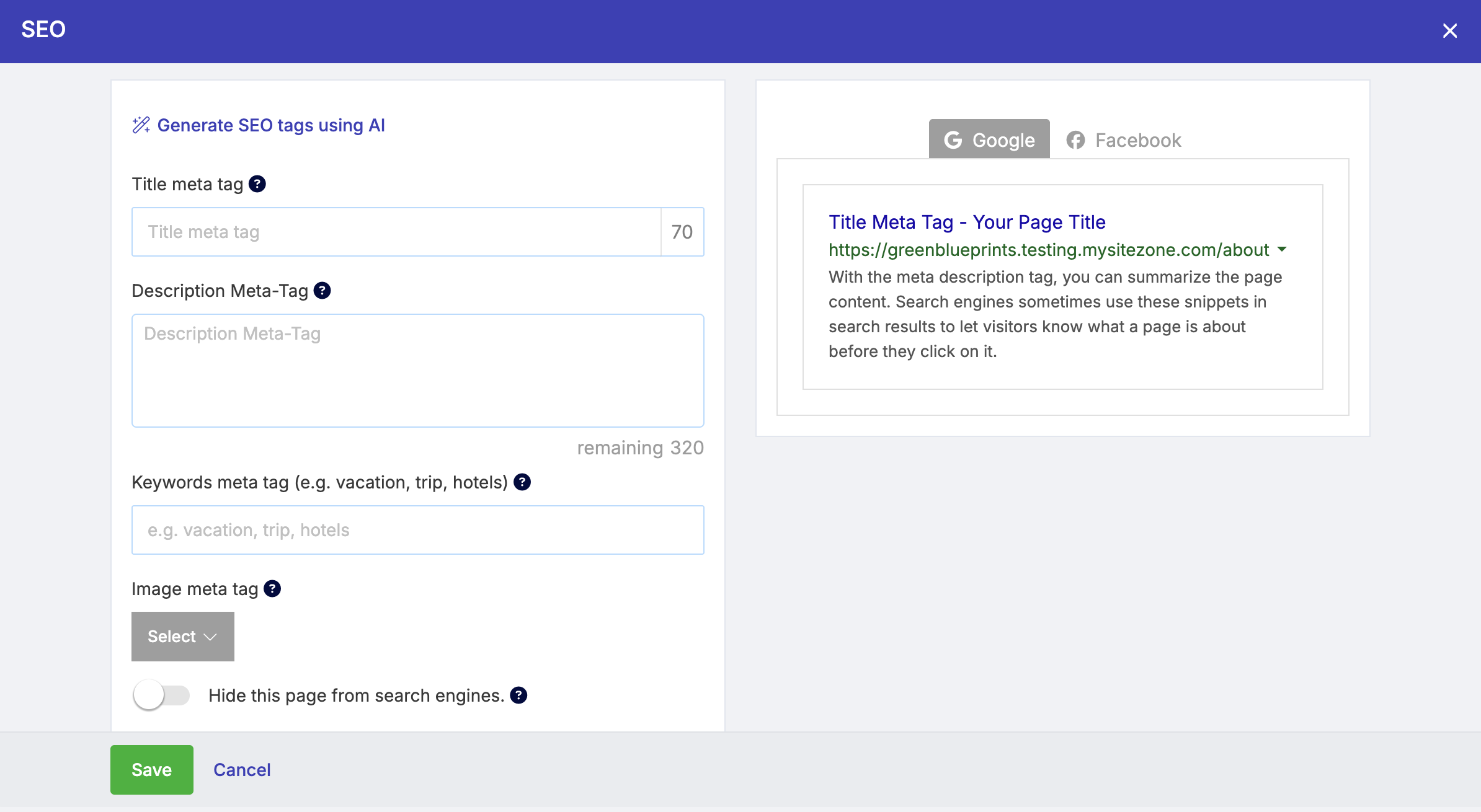
Select SEO from the list to open the editing fields.
Easily and quickly add meta tags and seo information to your SEO settings using this powerful AI tool
The AI tool will generate Title, Description, and Keyword meta tags directly related to your business, and your website's subject and content
This tool will help you efficiently adjust and fine-tune your pages' SEO, elevating your website's exposure and reach. To use this tool, click on the Generate SEO tags using Al option at the top of your SEO settings window.
Title Meta Tag – This appears at the top of browser tabs and as the main headline in search results.
Length: Keep this under 60 characters.
Tip: Include your primary keywords here if they aren't already in the description.
Description Meta Tag – This is the summary snippet displayed under your title in search results.
Length: Aim for 49–161 characters and fewer than 25 words.
Tip: Write this as "marketing text" to encourage users to click.
Keywords Meta Tag – These tags help search engines identify the page topic "behind the scenes".
Tip: Only include 1–3 highly relevant keywords per page.
Image Meta Tag – This controls which image appears when your link is shared on social media.
Tip: Use a general brand image for your homepage, but use specific product or article images for inner pages to boost conversion.
For pages that contain individual items (such as Articles, E-commerce, or Blog), you can access the Custom SEO section for each specific item.
Individual Meta Tags – Edit the title, description, and keywords for a single product or post.
Custom URL – Change the item’s URL slug to create a shorter, more descriptive path. A clean URL looks more professional and helps with search engine ranking.
Hiding Pages – To prevent a page from appearing in search results, enable the "Hide this page from search engines" option (which adds a Noindex tag).
Manual Exclusion – Hiding a "parent" page does not automatically hide its "child" pages; you must manually set the Noindex option for every individual page you wish to conceal.
Keyword Placement – Always prioritize natural, compelling language over "keyword stuffing" to ensure your site remains user-friendly and avoids search engine penalties.
Image meta Tags - The Image meta tag is the image that will appear when sharing the website on various platforms such as WhatsApp, Google, Facebook, and so on. Please note that after setting the image, it takes time for the image to appear on external service platforms