Set Up Your Business Email in Outlook 2010
You can connect your business email account to Microsoft Outlook 2010 to send and receive messages directly from your desktop.
Follow the steps below to complete the setup.
Open Outlook 2010
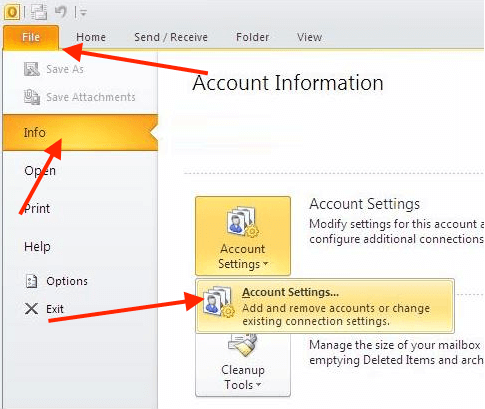
Click File
Go to Info
Click Account Settings
Select Account Settings again from the dropdown
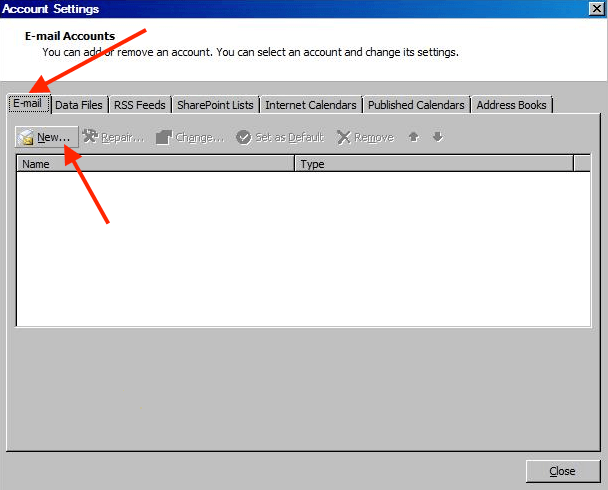
In the E-mail tab, click New…
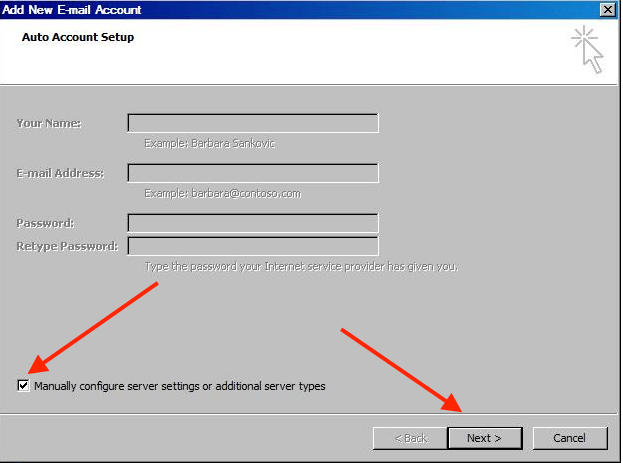
2. Select Manually configure server settings or additional server types
3. Click Next
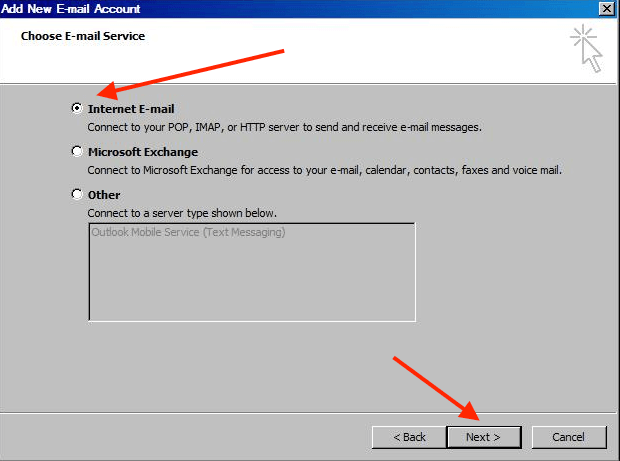
Select Internet E-mail
Click Next
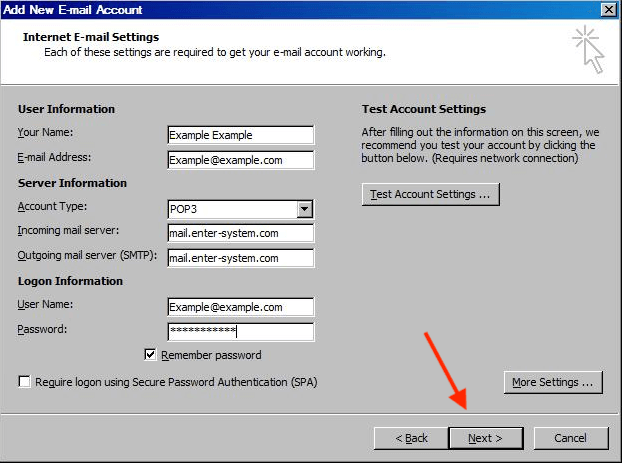
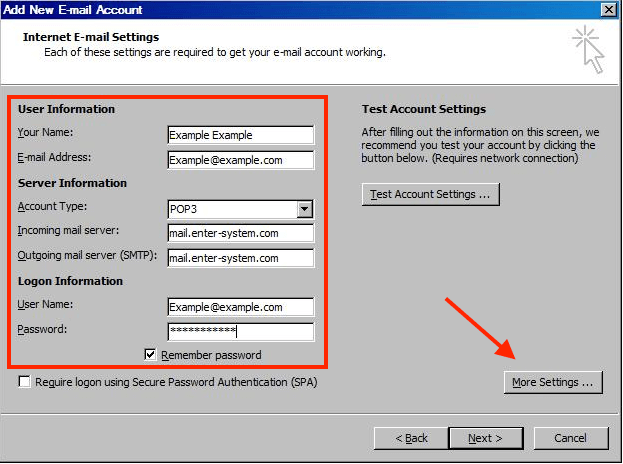
Fill in the required fields:
Your Name
(This is the name recipients will see when you send emails)
E-mail Address
Your full business email address (example: name@yourdomain.com)
Account Type
Choose either POP3 or IMAP
Incoming Mail Server
mail.enter-system.com
Outgoing Mail Server (SMTP)
mail.enter-system.com
User Name
Your full email address
Password
Your email account password
Once completed, click More Settings…
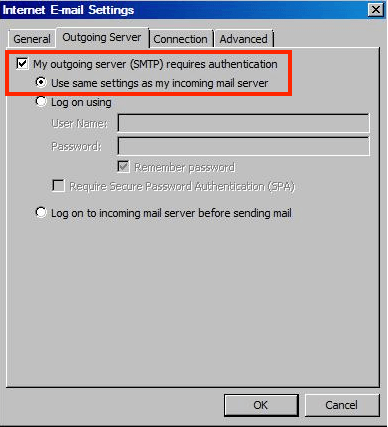
Open the Outgoing Server tab
Check the box:
My outgoing server (SMTP) requires authentication
Select:
Use same settings as my incoming mail server
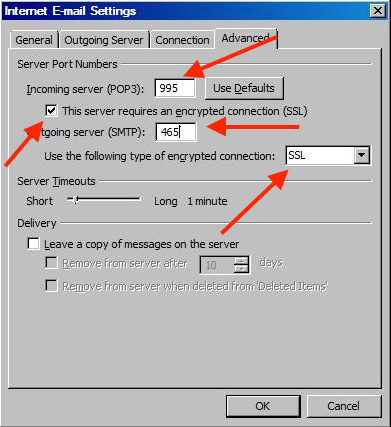
Open the Advanced tab
POP3 Port: 995
or
IMAP Port: 993
Enable:
✔ This server requires an encrypted connection (SSL)
SMTP Port: 465
Encryption type: Select SSL
Click OK to save your settings.
Click Next
Outlook will run a quick test to confirm everything is working
Once successful, click Finish