You can connect your business email account to Gmail to send and receive messages directly from the Gmail interface. This allows you to manage all your emails in one place while continuing to use your business email address.
This guide will walk you through both:
Sending emails through Gmail (SMTP)
Receiving emails in Gmail (POP3)
Log in to your Gmail account
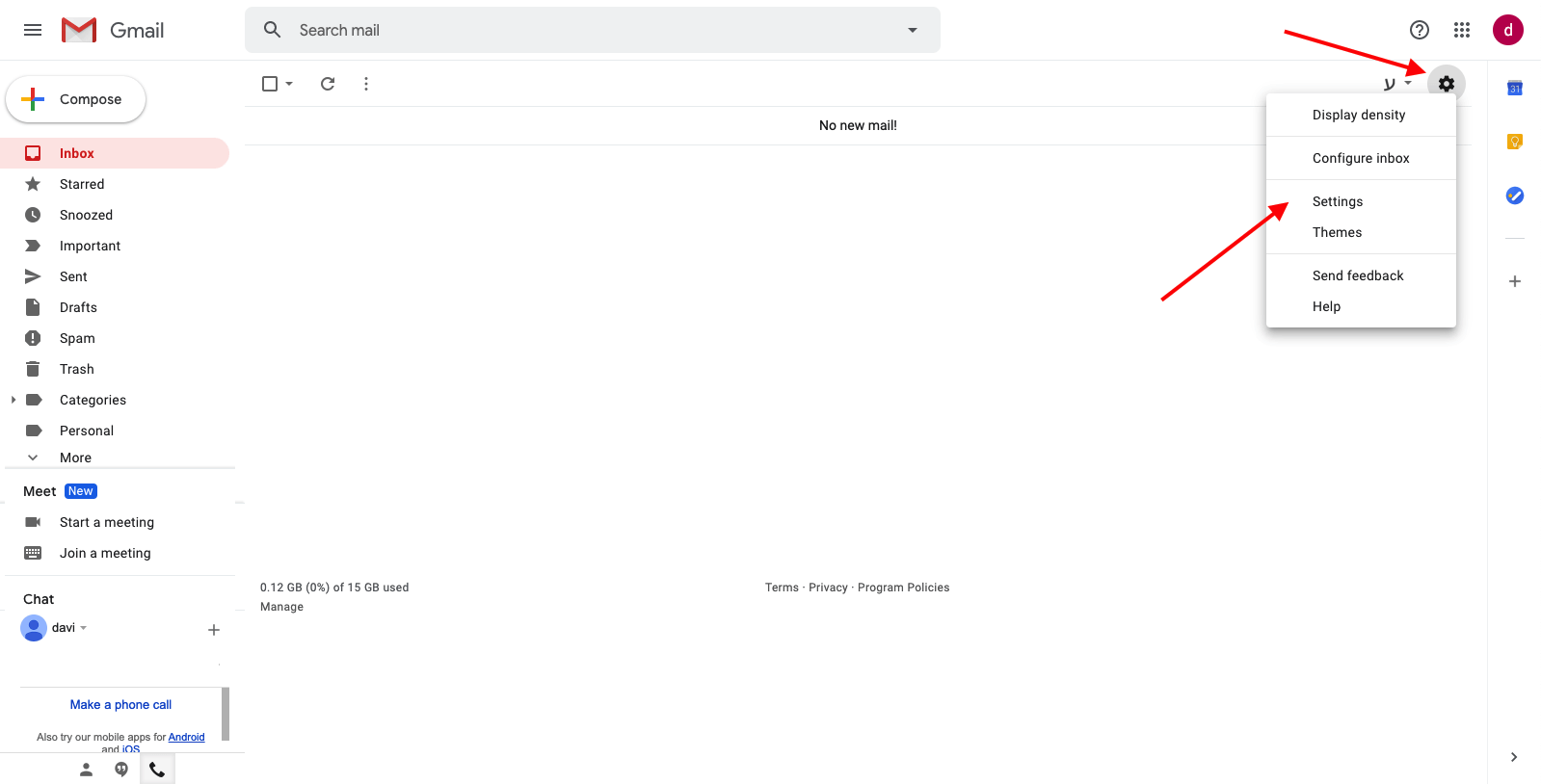
Click the gear icon in the top-right corner
Select See all settings
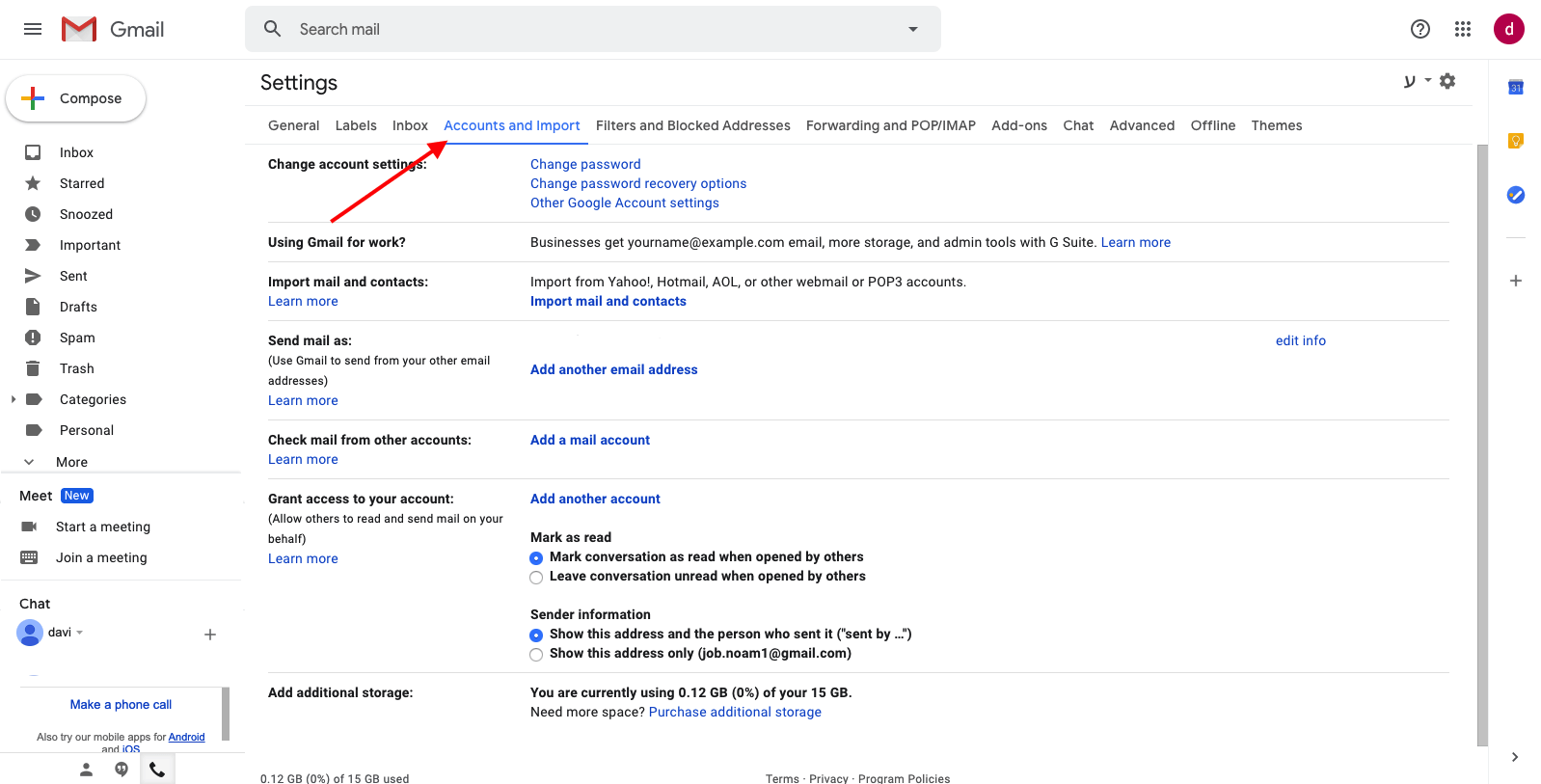
Click the Accounts and Imports tab
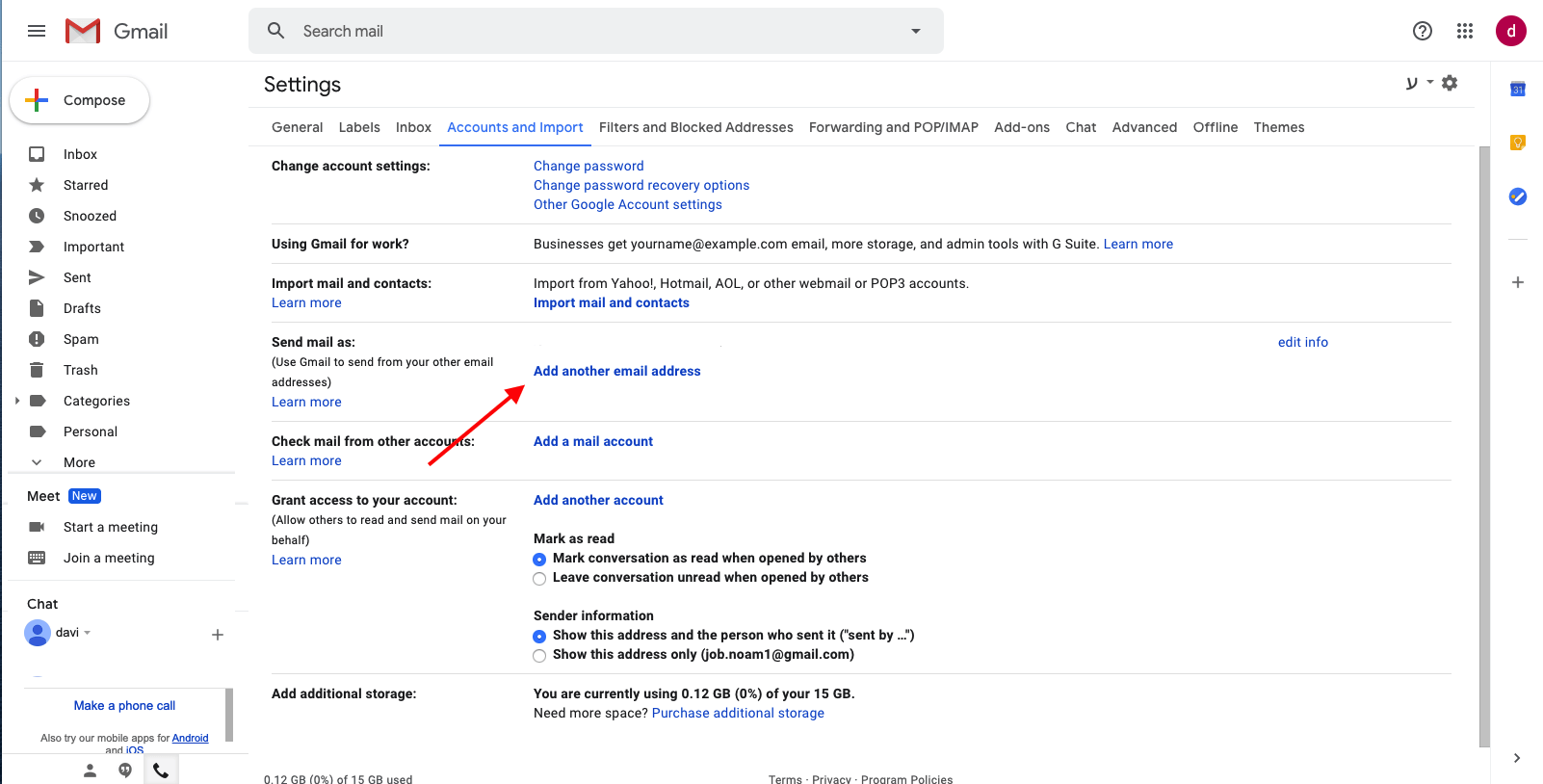
2. Under Send mail as, click Add another email address
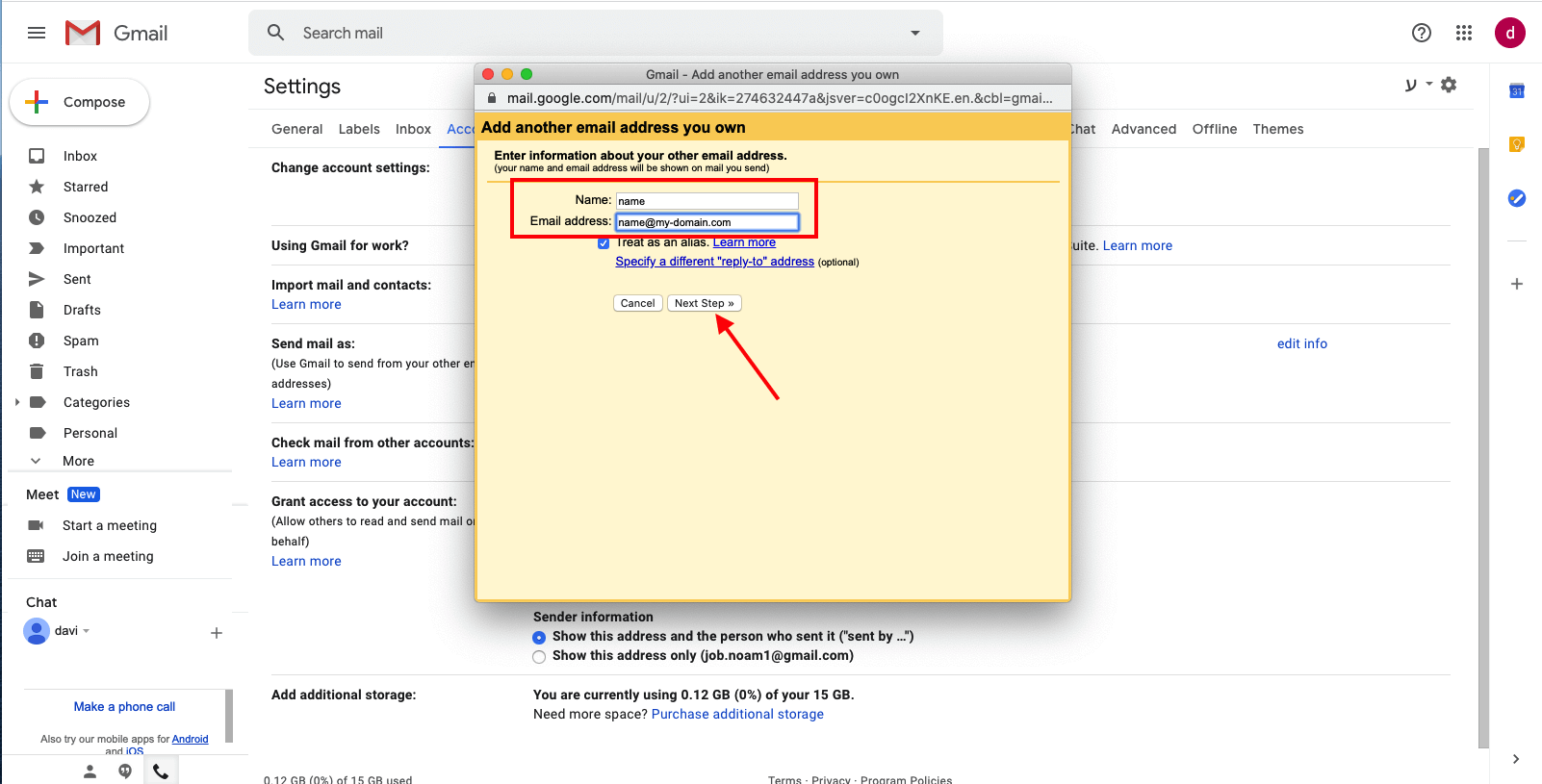
In the pop-up window:
Enter your name
Enter your business email address
Click Next Step
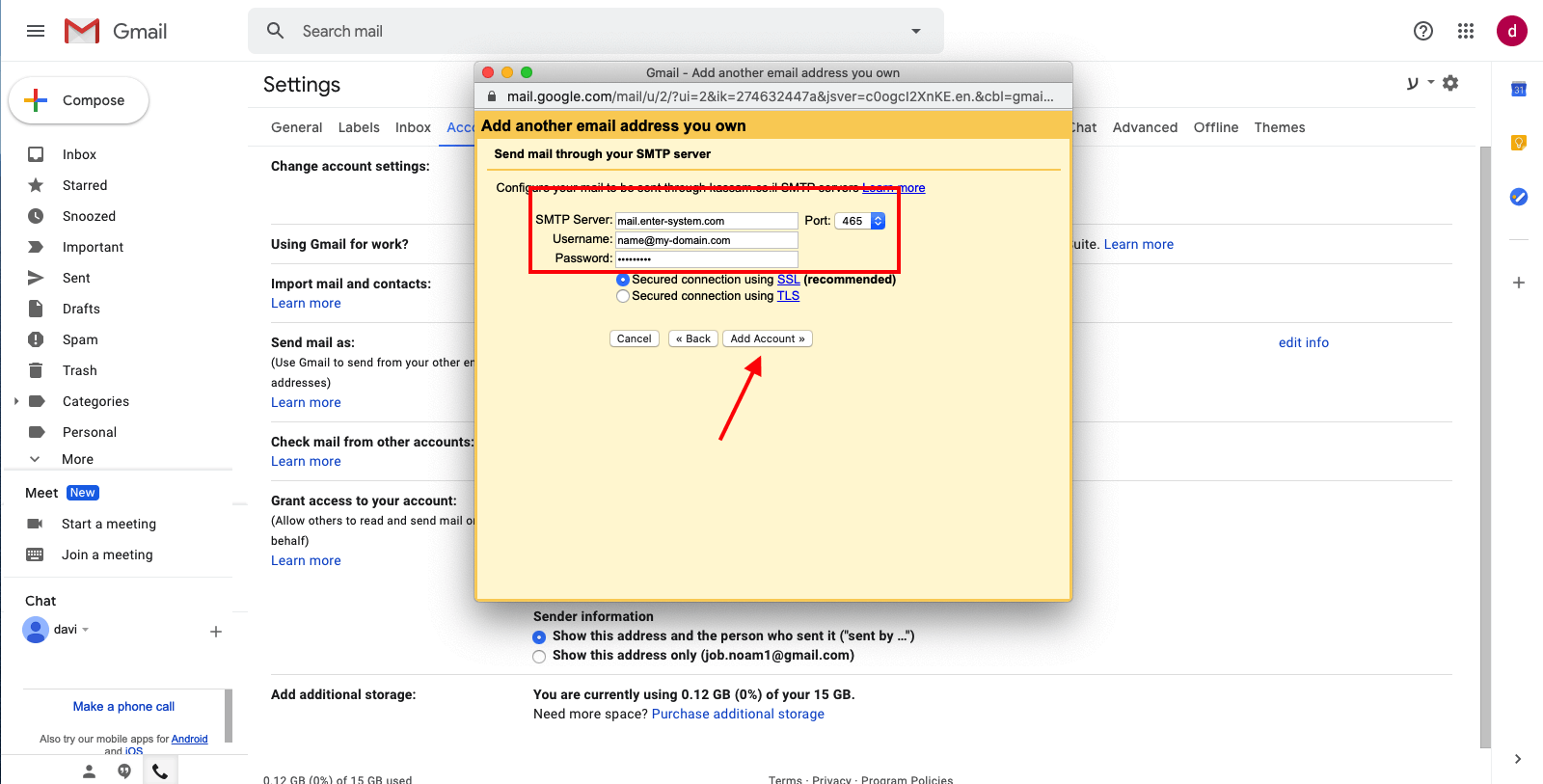
Enter the following information:
SMTP Server: mail.enter-system.com
Port: 465
Username: your full email address
Password: your email account password
Select Secured connection using SSL
Click Add Account to continue.
Gmail will send a verification email to your business mailbox.
Open the email
Copy the verification code
Paste it into Gmail
Click Verify
Your email is now ready to send messages through Gmail.
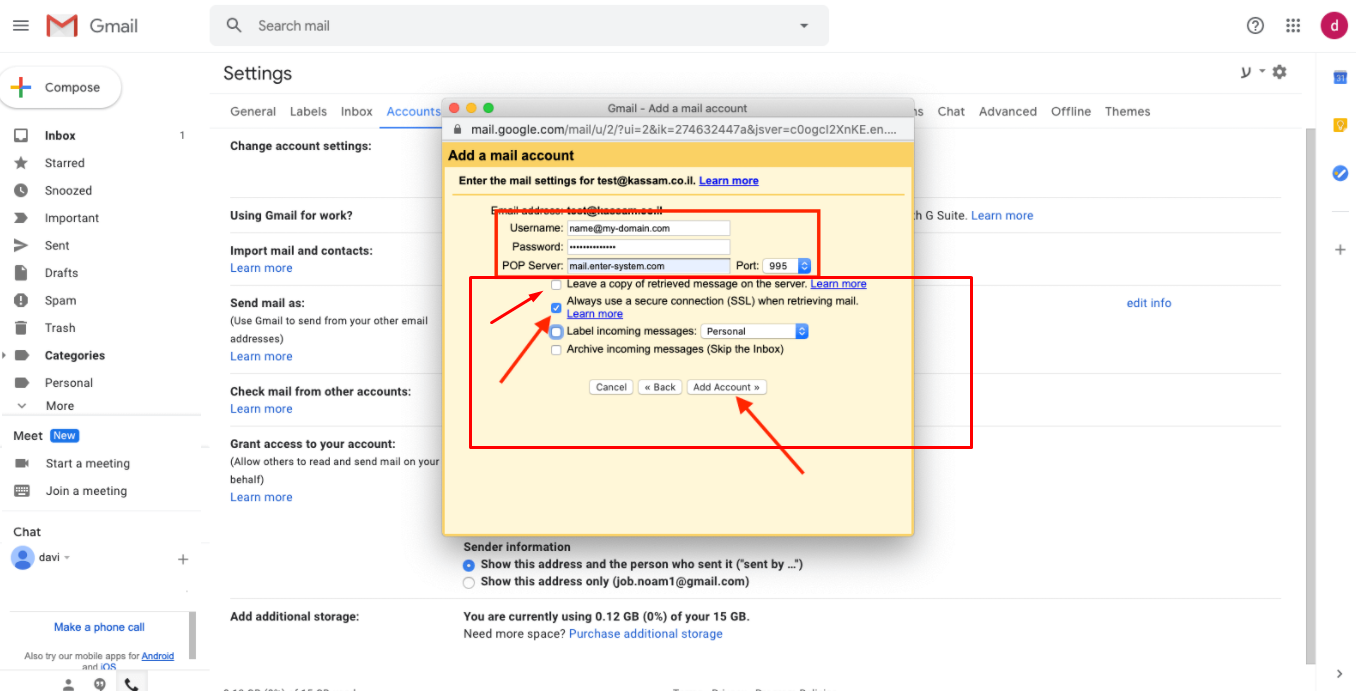
To also receive incoming emails from your business mailbox inside Gmail, follow these steps:
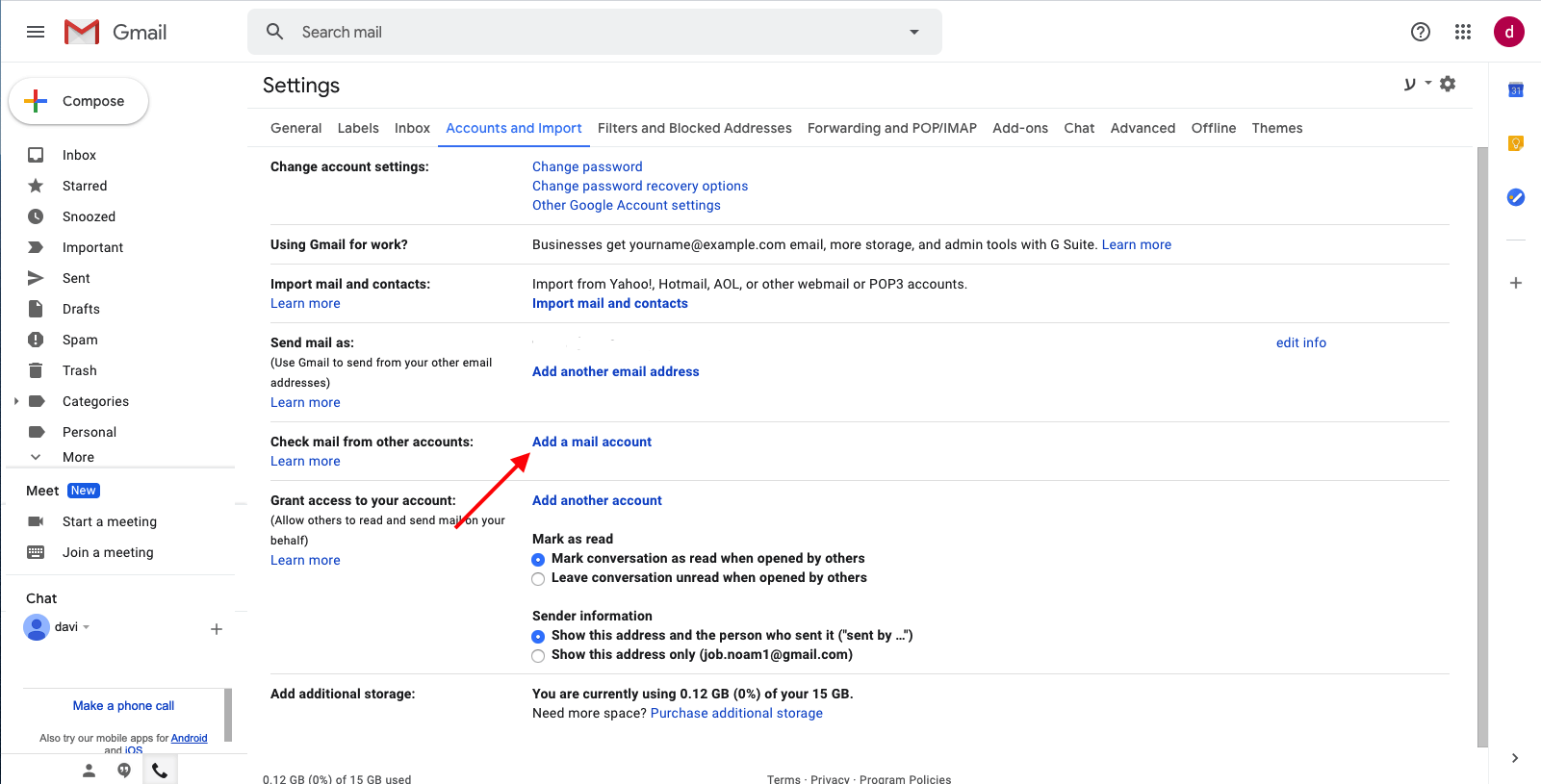
In Accounts and Imports, find Check mail from other accounts
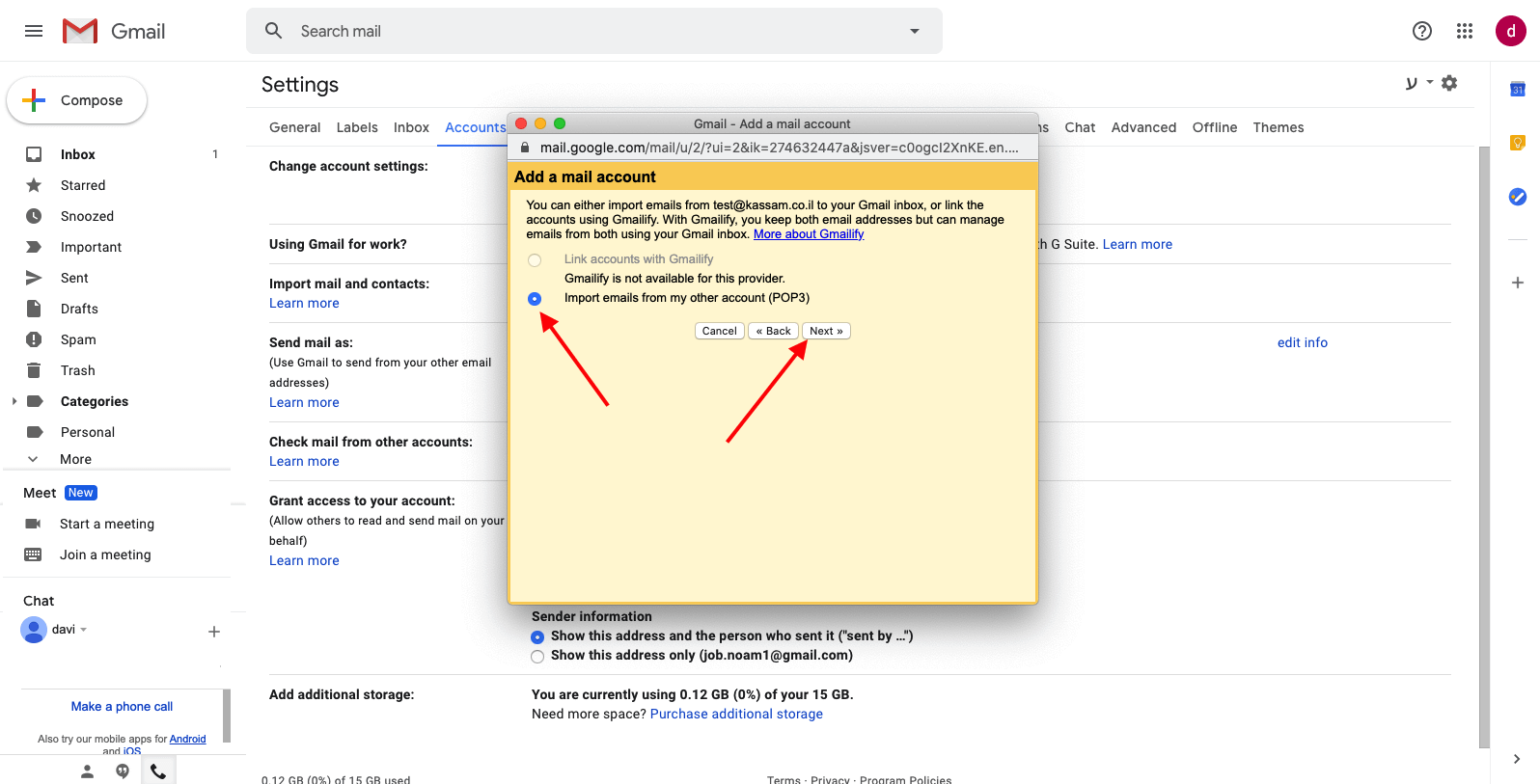
Click Add a mail account
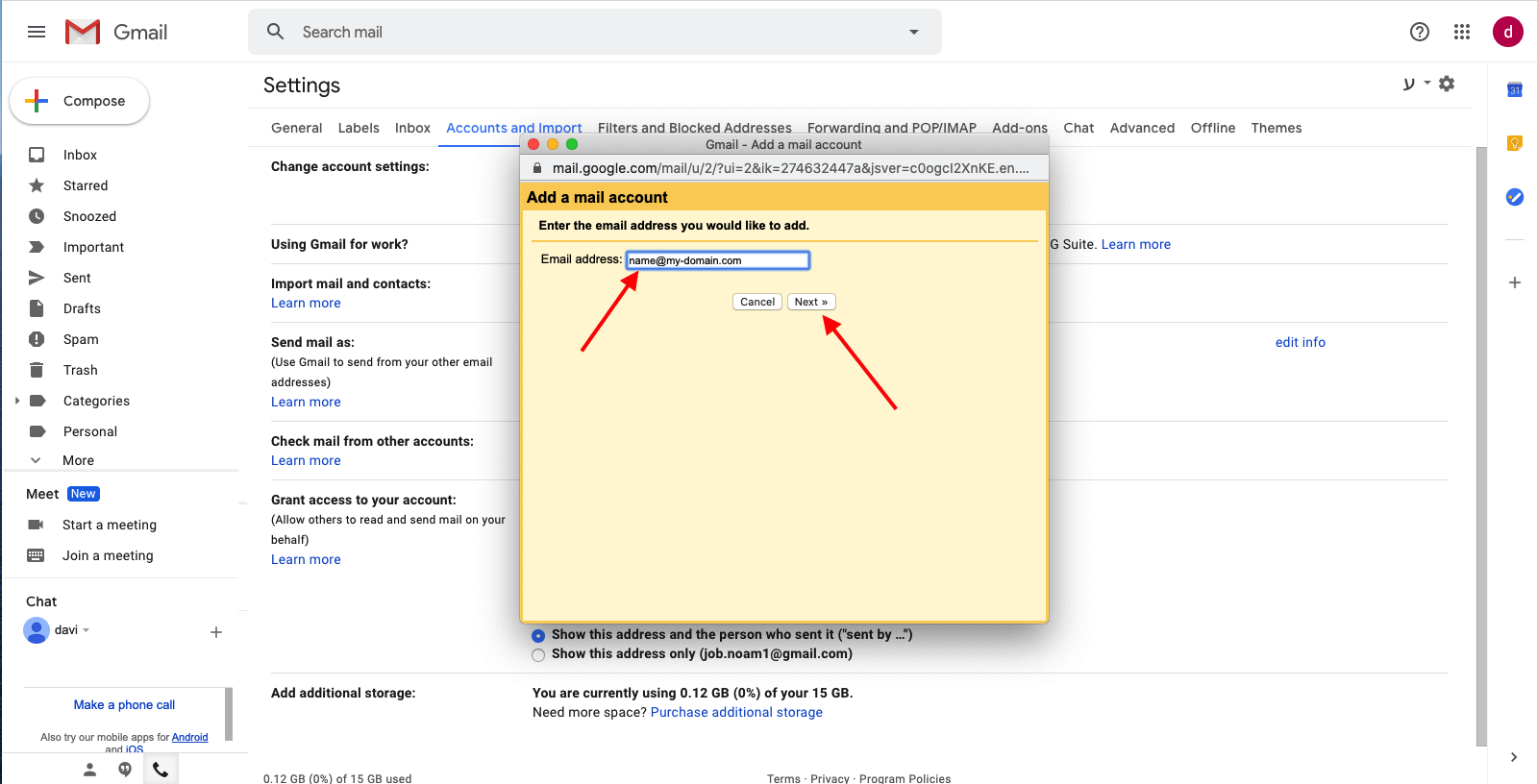
Enter your email address
Click Next
Select Import emails from my other account (POP3)
Click Next
Enter the following:
Username: your full email address
Password: your email account password
POP Server: mail.enter-system.com
Port: 995
Enable Always use a secure connection (SSL) when retrieving mail
Click Add Account