You can connect your business email account to Outlook 2016 to access and manage your messages directly from your personal Outlook application.
Follow the steps below to complete the setup.
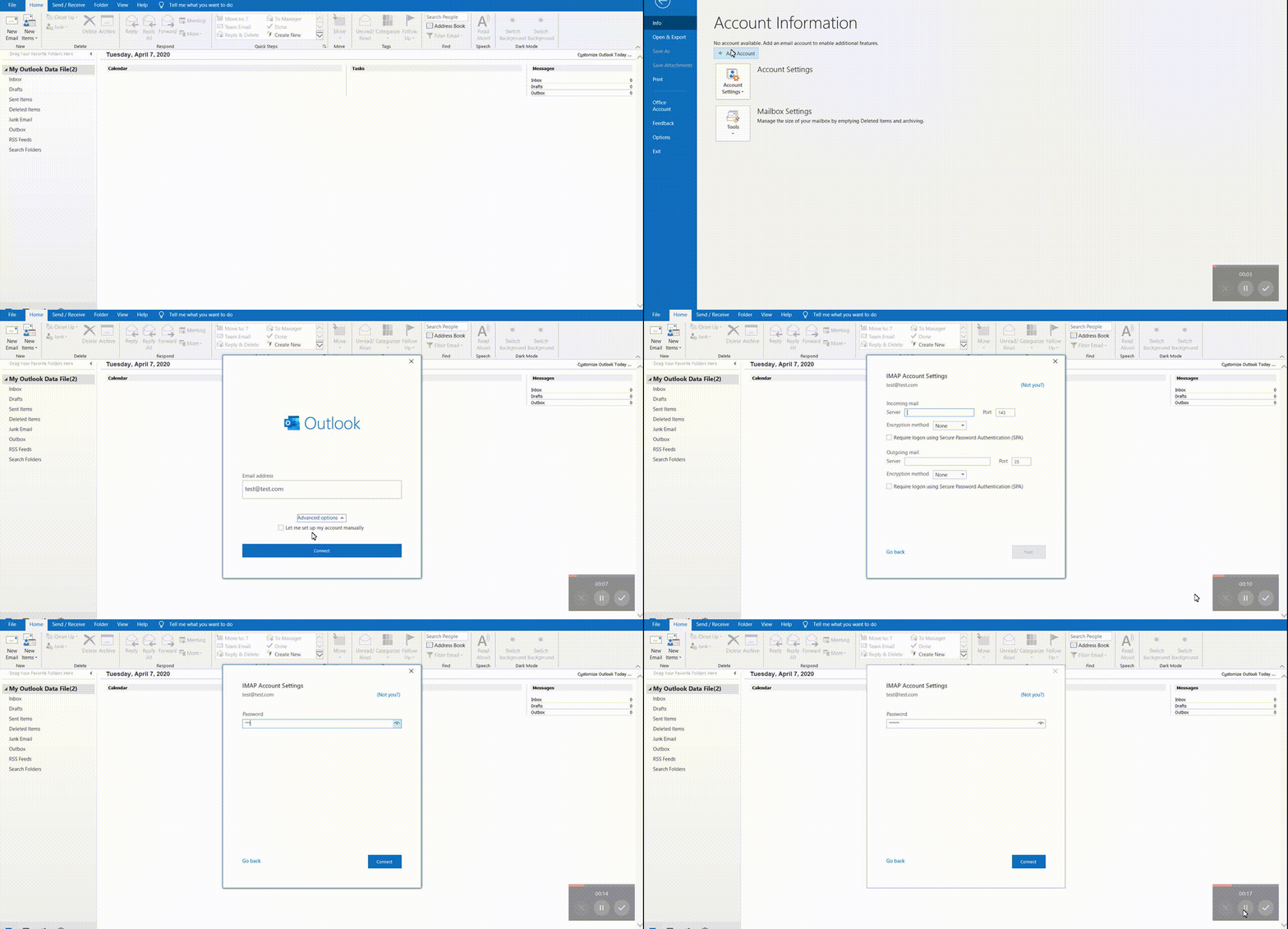
Open Outlook 2016 on your computer.
Click File in the top menu.
Select Add Account.
Enter your business email address.
Click Advanced options.
Check the box for Let me set up my account manually, then click Next.
Select IMAP as the account type, then click Next.
When prompted, enter the following details:
Server: mail.enter-system.com
Port: 993
Encryption: SSL/TLS
Server: mail.enter-system.com
Port: 465
Encryption: SSL/TLS
Click Next.
Enter the password for your email account.
Click Connect to complete the setup.
Your business email account will now be added to Outlook 2016, allowing you to send and receive emails directly from the app.